> ## Documentation Index
> Fetch the complete documentation index at: https://ecommerce-docs.fema.pt/llms.txt
> Use this file to discover all available pages before exploring further.
# Packages
> Create box templates to quickly select when creating shipments.
## What they're for
Packages are pre-defined templates for boxes or envelopes. When creating a shipment (individual or bulk), you can select a package instead of entering dimensions manually each time.
## Where to configure
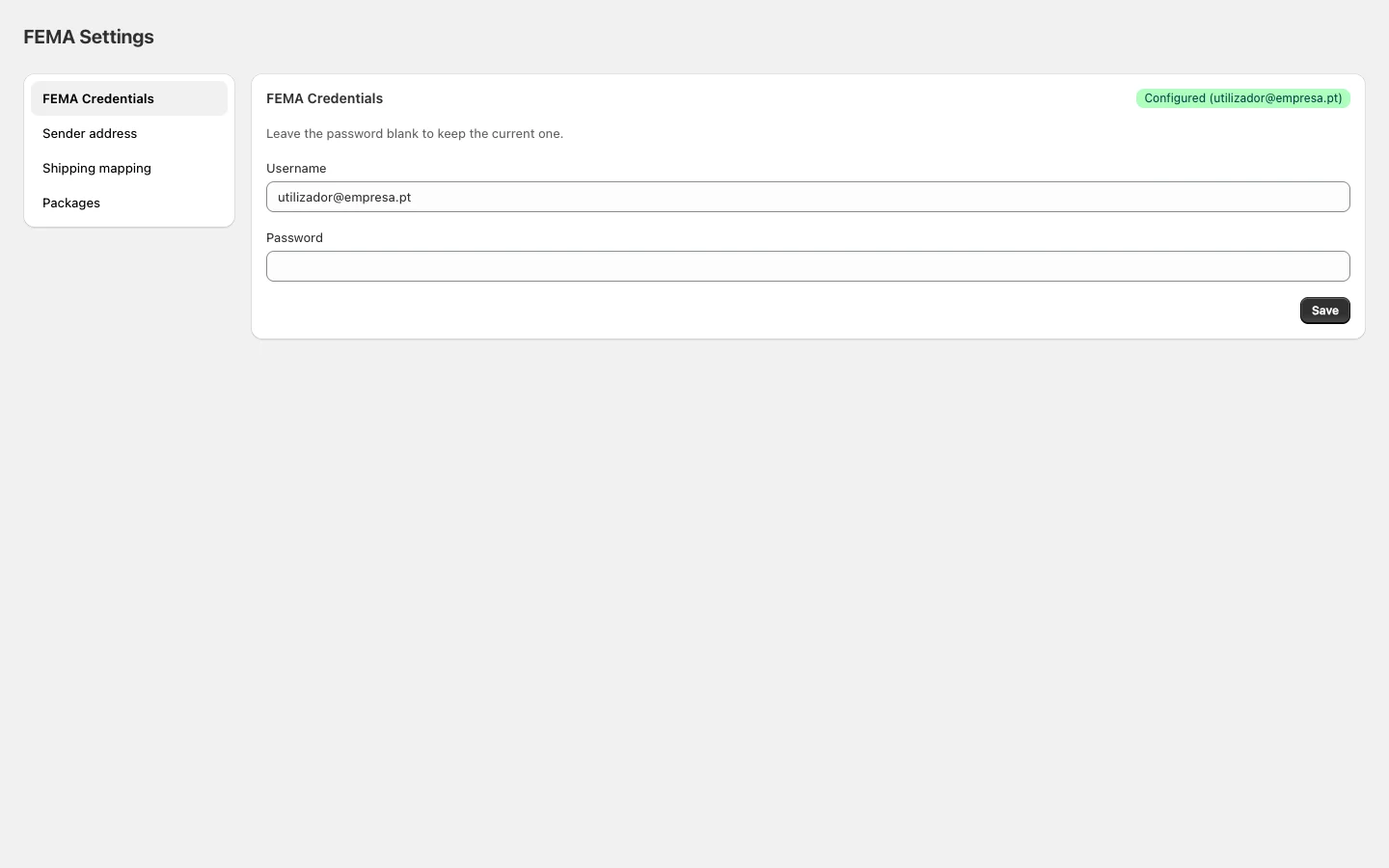
In Shopify Admin, open the FEMA app and click **Packages** in the sidebar.
 ## Package types
| Type | Description |
| --------- | ---------------------- |
| **Caixa** | Standard cardboard box |
| **LTR** | Envelope |
| **PLT** | Pallet |
| **Rolo** | Cylindrical packaging |
| **Saco** | Plastic or fabric bag |
## Adding a package
1. Click **Add**.
2. Enter a **name** (e.g. "Small box").
3. Select the **package type**.
4. Enter dimensions in centimetres: **length**, **height**, **width**.
5. Click **Save**.
## Editing or removing
* Click **Edit** on a package to change its properties.
* Click the trash icon to remove it.
Removing a package does not affect already-created shipments. It only stops being available for new ones.
## No packages configured
If you don't configure any packages, shipments are created with FEMA's default dimensions:
| Field | Default value |
| ------ | ------------- |
| Type | Caixa (Box) |
| Length | 20 cm |
| Height | 10 cm |
| Width | 2 cm |
To customise dimensions per shipment, use the block on the individual order page.
## Package types
| Type | Description |
| --------- | ---------------------- |
| **Caixa** | Standard cardboard box |
| **LTR** | Envelope |
| **PLT** | Pallet |
| **Rolo** | Cylindrical packaging |
| **Saco** | Plastic or fabric bag |
## Adding a package
1. Click **Add**.
2. Enter a **name** (e.g. "Small box").
3. Select the **package type**.
4. Enter dimensions in centimetres: **length**, **height**, **width**.
5. Click **Save**.
## Editing or removing
* Click **Edit** on a package to change its properties.
* Click the trash icon to remove it.
Removing a package does not affect already-created shipments. It only stops being available for new ones.
## No packages configured
If you don't configure any packages, shipments are created with FEMA's default dimensions:
| Field | Default value |
| ------ | ------------- |
| Type | Caixa (Box) |
| Length | 20 cm |
| Height | 10 cm |
| Width | 2 cm |
To customise dimensions per shipment, use the block on the individual order page.